The best WinSCP alternatives in 2026
Short answer: for pure protocol coverage use FileZilla (FTP/FTPS/SFTP) or Cyberduck (adds S3 and cloud storage). For SSH admin work where transfers are a side effect, use AidaIDE on Windows (free — SFTP and terminal on one session) or MobaXterm. On macOS and Linux, where WinSCP doesn't run at all, Cyberduck and FileZilla are the closest equivalents today; AidaIDE's Mac and Linux builds are in progress.
WinSCP is solid software with two decades of trust behind it, and it's Windows-only — which is why half the people searching for an alternative simply aren't on Windows. The other half want something WinSCP genuinely doesn't do: a shell on the same session, or S3 and cloud buckets. Those are two different problems, so here's the field sorted by which one you have.
The six alternatives, compared
| Tool | Platforms | Protocols | Best for |
|---|---|---|---|
| FileZilla | Win / Mac / Linux | FTP, FTPS, SFTP | The closest like-for-like replacement, cross-platform |
| Cyberduck | Win / Mac | SFTP, FTP, S3, Azure, Google Cloud, WebDAV | Cloud object storage alongside servers; Mountain Duck mounts drives |
| MobaXterm | Windows | SFTP, FTP + SSH | SFTP pane attached to an SSH session, with X11 forwarding |
| Termius | Win / Mac / Linux / mobile | SFTP + SSH | Same hosts synced across desktop and phone |
| Bitvise SSH Client | Windows | SFTP, SCP + SSH | Free-for-personal-use SFTP GUI with strong tunnelling |
| AidaIDE | Windows (Mac / Linux in progress) | SFTP + SSH | File browser, terminal, and editor on one session; edit in place |
How to choose in one line: if you need protocols WinSCP has (FTP, S3, WebDAV), go FileZilla or Cyberduck. If you need something WinSCP lacks — a real shell on the same session — go AidaIDE or MobaXterm.
If you want a straight file-transfer replacement
FileZilla is the default answer and a fair one: same two-pane layout, same drag-and-drop mental model, FTP/FTPS/SFTP, and it runs on macOS and Linux where WinSCP can't. Take the installer from the official site rather than a download portal, and decline the bundled offers.
Cyberduck is the pick when "files" stopped meaning "a server." It speaks SFTP and FTP but also S3, Azure, Google Cloud Storage, and WebDAV, so one bookmark list covers your boxes and your buckets. Its companion Mountain Duck mounts remote storage as a local drive, which is the closest thing to WinSCP's synchronise workflow.
Bitvise SSH Client is the underrated Windows option — a capable SFTP GUI with genuinely strong tunnelling and port-forwarding, free for individual use.
If the real problem is that files and shell are separate apps
The most common WinSCP complaint isn't about transfers at all. It's the loop: download the config, edit it locally, upload it back, then open PuTTY and log in again to restart the service and tail the log. WinSCP can launch PuTTY for you, but that's a second program and a second authentication — not one session.
MobaXterm solves this on Windows by showing an SFTP pane beside each SSH session. AidaIDE — ours, so weigh accordingly — goes further: the browser and terminal share one authenticated session, the editor writes changes straight back to the server with no temp copy, and navigation is linked both ways. LCOT = Local Chain of Thought — 800+ one-click commands + linked terminal/SFTP on one SSH login. Glossary: What is LCOT?. For the direct head-to-head, see AidaIDE vs WinSCP. For the wider field of SSH clients that include SFTP, see SSH client with SFTP. Replacing PuTTY at the same time? One workspace instead of the hop.
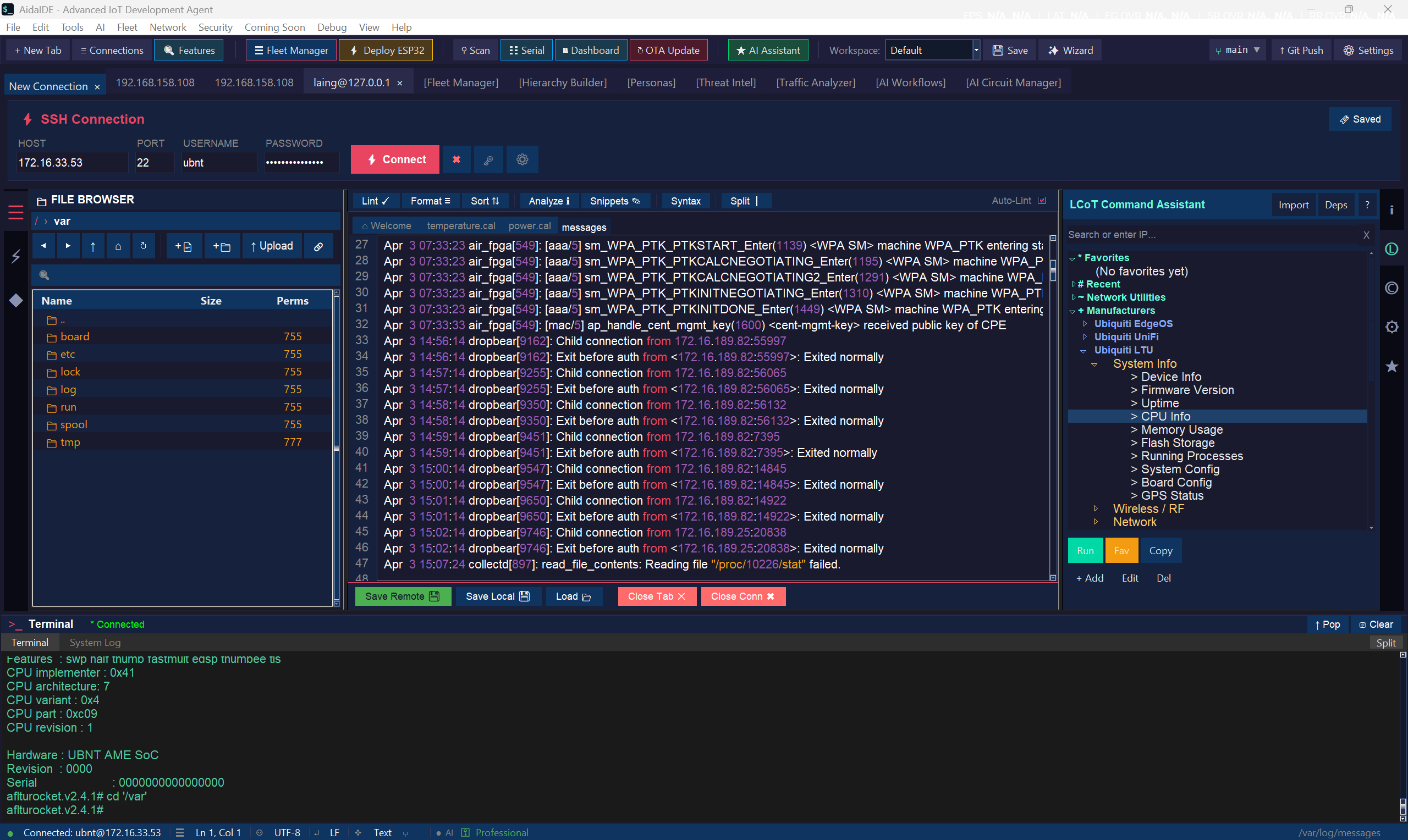
How AidaIDE compares with WinSCP specifically
| Capability | WinSCP | AidaIDE (Free) |
|---|---|---|
| SFTP / SCP transfers | Yes — excellent | Yes — dual pane, drag and drop |
| FTP / FTPS / WebDAV / S3 | Yes | No — SSH/SFTP focused |
| Edit remote files | Via temp copy + re-upload (built-in or external editor) | In place — real editor, syntax highlighting for 19+ languages, save writes to server |
| Terminal on the same session | Launches PuTTY separately (second login) | Built in — file browser and shell share one session |
| Linked navigation (cd follows the file browser) | No | Yes — LCOT (Local Chain of Thought) links panes both ways |
| Credential storage | Stored; master password optional and off by default | AES-256 vault, always encrypted |
| One-click command library | No | LCOT — 800+ plain-English phrases |
| Transfer scripting / .NET automation | Yes — the gold standard | Not a scripting engine |
| Price | Free | Free forever (no license key) |
The honest version: if you need FTP/S3 protocols or scripted transfer jobs, WinSCP is still the specialist — keep it for those. If your daily reality is "browse, edit, restart the service, check the log" on SSH boxes, AidaIDE collapses four steps into one window.
The workflow difference, concretely
With WinSCP + PuTTY
- Open WinSCP, log in. Find the config file. Download-open it, edit, save — WinSCP re-uploads the temp copy.
- Now open PuTTY, log in again, to restart the service and tail the log.
- Two apps, two sessions, and a temp-file dance you've stopped noticing because you've done it a thousand times.
With AidaIDE
- One click on the saved host — vault supplies the credentials.
- File browser and terminal open side by side on the same session. Open the config, edit, save. It's on the server.
- Click "restart service" and "tail log" in LCOT — or type them; the terminal is right there.
When you should stick with WinSCP
- You transfer over FTP, FTPS, WebDAV, or S3 — AidaIDE deliberately doesn't do those.
- You've built scripted/automated transfer jobs on WinSCP's scripting or .NET assembly. That machinery is mature; don't rip it out.
- You want a synchronize-directories GUI workflow as your primary use case.
For everyone whose file transfers are a side effect of administering machines over SSH — the config edits, the deploys, the log checks — the one-window workflow wins on the first day.
Frequently asked
What is the best free WinSCP alternative?
FileZilla if you want the same two-pane transfer tool on any OS, and AidaIDE if you want SFTP with a terminal and editor on the same session. Both are free. Cyberduck is free too and is the better pick if S3 or cloud storage is in the mix.
Is there a WinSCP alternative for Mac?
WinSCP is Windows-only, so this is the most common reason people search for one. Cyberduck and FileZilla both run natively on macOS. AidaIDE ships for Windows today, with macOS and Linux builds in progress. Cyberduck is the most macOS-native of the three.
Is there a WinSCP alternative for Linux?
FileZilla runs on Linux. AidaIDE ships for Windows today, with a Linux desktop build in progress. Many Linux users skip a GUI client entirely and use sftp, rsync, or their file manager's built-in SFTP support, which is often enough.
Which WinSCP alternative supports S3 or cloud storage?
Cyberduck — it handles S3, Azure, Google Cloud Storage, and WebDAV alongside SFTP and FTP. FileZilla Pro adds S3 support as a paid upgrade. AidaIDE is deliberately SSH/SFTP-only.
When should I just keep using WinSCP?
When you transfer over FTP, FTPS, WebDAV, or S3, when you've built scripted transfer jobs on WinSCP's scripting or .NET assembly, or when directory synchronisation is your main workflow. That machinery is mature — don't rip it out for its own sake.
One session. Files and shell together.
Free forever · no license key · Windows (macOS & Linux in progress)
Sign Up Free — DownloadAlso replacing PuTTY? Read the PuTTY comparison · Replacing both? One workspace instead of the hop · What is LCOT? · SSH clients with SFTP · How to edit remote files without downloading them